
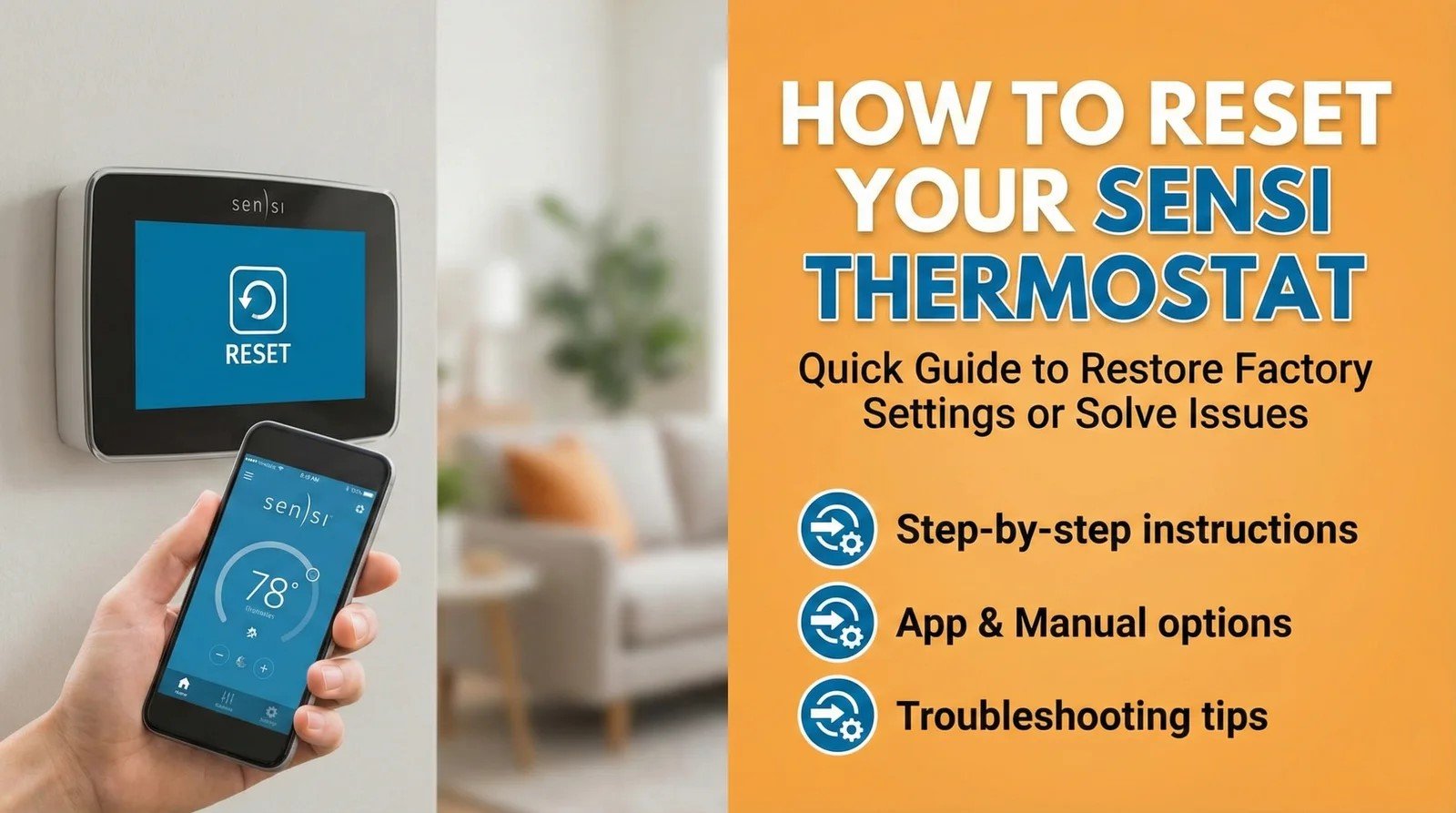
How to Reset Your Sensi Thermostat: A Complete Step-by-Step Guide
We’ve all been there. It’s the coldest night of the year (or the hottest day of summer), and your Sensi thermostat is suddenly unresponsive, disconnected from Wi-Fi, or just not controlling your HVAC system correctly. It’s frustrating, but don’t call a technician just yet. Often, a simple reset is all it takes to get your home’s climate back under your control.
This comprehensive guide is your one-stop resource for resetting any Sensi thermostat model. We’ll walk you through everything from the pre-reset checks to the different types of resets and what to do if things still aren’t working. Let’s get this sorted out.
Before You Reset: The Essential 5-Minute Checklist
Jumping straight to a full reset can sometimes cause more work than necessary, as it can wipe all your carefully crafted schedules and settings. Before you take that step, run through this quick checklist. In my experience, over 50% of thermostat “failures” are solved by one of these simple checks.
- Check the Batteries: This is the #1 culprit for blank screens and unresponsiveness, especially on models that don’t use a C-wire for power. Most Sensi thermostats have a battery door on the front faceplate. Slide it off and replace the batteries (usually two AA batteries) with a fresh, brand-name set. Avoid cheap or old batteries.
- Check the Display for Error Codes: Is the thermostat trying to tell you something? Look for any error messages, icons, or codes on the screen. A quick search for that specific code can often lead you to a much faster solution than a full reset.
- Check Your Wi-Fi Connection (For Smart Models): Is your home Wi-Fi network down? Check if other devices like your phone or laptop can connect. If your router was recently reset or the password changed, the Sensi won’t be able to connect. The Sensi app will usually indicate a connection issue.
- Check the Circuit Breaker: Your thermostat and HVAC system are powered by a circuit in your home’s main electrical panel (breaker box). Find the panel and look for the breaker labeled “HVAC,” “Furnace,” or “Air Handler.” If it’s tripped (in the middle or “off” position), flip it firmly to “off” and then back to “on.”
The Main Event: How to Reset Your Sensi Thermostat
If you’ve gone through the checklist and the issue persists, it’s time for a reset. There are two main types: a **soft reset** (restarting the device, often through the menu) and a **hard reset** (cutting power to the device). We’ll cover both. The process can vary slightly depending on your model.
For Sensi Touch, Touch 2, and other Wi-Fi Smart Models
These modern Sensi thermostats have a digital interface that provides a straightforward way to perform a factory reset, which will wipe your settings and Wi-Fi configuration.
Method 1: The Factory Reset (Via the Menu)
Use this method if you want to completely wipe the thermostat and start fresh. This is useful if you’re moving, selling your home, or have persistent software glitches.
- On the thermostat’s screen, tap the Menu button.
- Navigate to About Thermostat. You may need to use the up/down arrows to scroll through the options.
- Look for the option labeled Factory Reset.
- The thermostat will ask you to confirm. Select Yes.
The thermostat will restart, and all your personal settings, schedules, and Wi-Fi information will be erased. You will need to go through the initial setup process again, just like it was new out of the box.
Method 2: The Hard Reset (Power Cycle)
This method is more like rebooting a computer. It forces the hardware to restart and can clear temporary glitches without necessarily wiping all your saved settings. This is often the best choice for fixing unresponsiveness or connection issues.
- Turn Off Power at the Breaker: Go to your home’s main electrical panel. Locate the circuit breaker that controls your HVAC system (often labeled “Furnace,” “Air Handler,” or “HVAC”). Flip it to the OFF position.
- Gently Remove the Faceplate: Grasp the Sensi thermostat faceplate on the top and bottom and pull it straight off the sub-base that is attached to the wall. It should pop off without much force.
- Remove the Batteries: Even if your Sensi uses a C-wire for main power, it likely has backup batteries. Remove these now.
- Wait for 5 Minutes: This is a crucial step. Leave the thermostat faceplate off and the batteries out for at least 5 minutes. This allows the internal capacitors to fully discharge, ensuring a complete and true reset of the internal components.
- Reassemble: Re-insert the fresh batteries, then carefully align the faceplate with the sub-base on the wall and press it firmly until it clicks back into place.
- Restore Power: Go back to your circuit breaker and flip the HVAC switch back to the ON position.
The thermostat will boot up. In most cases, it should reconnect to your Wi-Fi and retain its previous settings after a few minutes. If it doesn’t, you may need to re-enter your Wi-Fi credentials.
For Sensi Classic (Non-Touch) or Older Models
For the classic models with physical buttons, a “Factory Reset” option in a menu may not be available. In this case, the **Hard Reset (Power Cycle)** described above is the primary and most effective method. Follow the exact same six steps to cut the power, wait, and restore power.
Understanding Sensi Error Codes Before You Reset
Not every hiccup calls for a factory reset or a power cycle. Sensi thermostats are designed to surface a specific error code when something inside the system needs attention, and reading that code correctly can save you an unnecessary reset — or tell you that a reset genuinely is the right move. Below is a plain-language rundown of the codes you’re most likely to run into.
| Code | What It Usually Means | Does a Reset Help? |
|---|---|---|
| E1 | The thermostat cannot communicate reliably with the HVAC equipment. Often a wiring or system-type mismatch. | Rarely — check wiring first, then reconfigure system type after a reset. |
| E2 | Temperature sensor fault; the unit isn’t reading a valid indoor temperature. | Sometimes — a hard reset can clear a stuck sensor reading. |
| E3 | Outdoor or auxiliary sensor fault on models that support one. | Occasionally, but usually a hardware or wiring issue. |
| E4 | Wi-Fi setup could not complete, often due to a weak signal or wrong password. | Yes — a Wi-Fi-only reset (covered below) is the right fix. |
| E5 | An internal power-supply protector has tripped, frequently after a power surge or wiring mistake. | No — this is a hardware safety trip. Contact support before resetting repeatedly. |
| E6 / E7 | The thermostat cannot control the HVAC system correctly, often tied to heat-pump configuration. | Yes, if paired with re-checking the system type during setup. |
| E8 / E9 | The thermostat ignores setpoint changes or reboots repeatedly, usually a firmware glitch. | Yes — a hard reset is the standard fix. |
If you see an error code that isn’t listed here, or one that returns immediately after every reset attempt, that’s a strong signal the issue lives in the wiring or the HVAC equipment itself rather than in the thermostat’s software — and it’s a good moment to call in a professional rather than keep cycling the power.
Resetting Just the Wi-Fi (Without Wiping Everything Else)
One of the most common searches related to this topic isn’t “how do I reset my thermostat” — it’s “how do I reconnect my thermostat to a new Wi-Fi network without losing my schedule.” The good news is that Sensi separates these two functions, and you don’t need a full factory reset just to switch networks or fix a connectivity hiccup.
- From the thermostat’s home screen, tap Menu.
- Select Wi-Fi or Network Settings, depending on your model’s menu wording.
- Choose Forget Network or Disconnect.
- Open the Sensi app on your phone, go to the thermostat’s device settings, and choose Reconnect to Wi-Fi.
- Follow the in-app prompts to select the new network and enter the password.
This approach leaves your schedules, HVAC configuration, and preferences untouched. It’s the method to reach for after moving a router, changing your Wi-Fi password, or switching internet providers — situations where the thermostat itself was never the problem.
What to Expect After a Reset: The Reconfiguration Process
If you performed a full Factory Reset, your Sensi is now a “blank slate.” You’ll need to set it up again.
- Wi-Fi Reconnection: You will need to use the Sensi app on your smartphone to guide you through connecting the thermostat to your home Wi-Fi network again. This typically involves connecting to a temporary Sensi network and then providing your home network’s password.
- HVAC Configuration: This is critical for proper operation. The app will ask you to configure your system type. You’ll need to know if you have a conventional system (gas furnace + AC) or a heat pump. Look for labels on your wires (e.g., an orange wire on the “O/B” terminal usually indicates a heat pump).
- Rebuilding Schedules: Your custom heating and cooling schedules will be gone. Take this as an opportunity to create a new, energy-efficient schedule in the Sensi app.
Re-Pairing With Amazon Alexa, Google Home, and Apple HomeKit
A factory reset doesn’t just disconnect the thermostat from your router — it also breaks the link between the Sensi app and any voice assistant or smart-home platform you had connected. If “Alexa, set the temperature to 70” stops working after a reset, this is why, and reconnecting is quick once the thermostat itself is back online.
Amazon Alexa
- Open the Alexa app and go to More > Skills & Games.
- Search for “Sensi” and open the skill. If it shows as already linked, tap Disable Skill and then re-enable it to force a fresh handshake.
- Sign in with your Sensi account credentials when prompted.
- Run Discover Devices from the Alexa app’s device menu so your thermostat reappears in your device list.
Google Home / Google Assistant
- In the Google Home app, tap Add > Works with Google.
- Search for Sensi, sign in, and grant permissions again.
- Confirm the thermostat shows up under the correct room assignment, since room labels typically don’t survive a factory reset.
Apple HomeKit
HomeKit-compatible Sensi Touch models generate a new pairing code after a factory reset, because HomeKit treats a reset device as brand new hardware. During setup, choose HomeKit Setup in the Sensi app and scan the QR code on the back of the faceplate, or enter the printed HomeKit code by hand. Any existing Home app automations that referenced the old thermostat entry will need to be rebuilt, since HomeKit won’t automatically recognize the “new” device as the same one.
Resetting Sensi Predict, Humidity, and Comfort Settings
Beyond Wi-Fi and basic scheduling, newer Sensi models track learned comfort preferences through features like Sensi Predict, along with humidity and fan-circulation settings. These don’t always reset the same way as your heating and cooling schedule.
- Sensi Predict: A full factory reset clears any learned patterns immediately. If you only want to clear the learning data while keeping your schedule, look under Menu > Sensi Predict > Reset Learning in the app, where available on your model.
- Humidity Targets: On models with humidity control, target humidity levels revert to a default range (commonly 40–50%) after a factory reset and need to be re-entered under Settings > Humidity.
- Fan Circulation Mode: Any custom “circulate” fan schedule is wiped along with the rest of your programming and will need to be turned back on manually if you use it to even out temperatures between rooms.
Removing a Sensi Thermostat From Your Account (Before Selling or Moving)
If you’re selling your home or handing the thermostat off to a new owner, a factory reset on the device itself isn’t quite enough — the unit can still be tied to your Sensi cloud account. Clearing that link protects your privacy and ensures the next owner can register the thermostat under their own account without a conflict.
- Open the Sensi app and go to Settings > My Devices.
- Select the thermostat you’re removing.
- Choose Remove Device or Delete Thermostat from the device’s settings menu.
- Confirm the removal, then perform the on-device factory reset described earlier so the hardware itself is also wiped.
Doing both steps — removing it from your account and resetting the hardware — is the cleanest way to hand off a Sensi thermostat, and it avoids the common problem of a new owner’s app repeatedly failing to “discover” a thermostat that’s technically still registered to someone else.
Essential Tools for Advanced Thermostat Troubleshooting
If a reset doesn’t work, the problem might lie with the power source or wiring. Having a few simple tools on hand can save you the cost of a service call. Here are some trusted items available on Amazon.

AstroAI Digital Multimeter
A blank screen after a reset often means a power issue. A multimeter allows you to safely test for 24V AC power between the ‘R’ and ‘C’ terminals on your thermostat’s base. It’s an indispensable tool for any serious DIYer. No power? The problem is with your furnace, not the thermostat.
Check Price on Amazon
Duracell Coppertop AA Batteries (24 Pack)
Never underestimate the power of fresh batteries. A weak set can cause all sorts of bizarre behavior, from connectivity issues to a completely blank screen. Always use high-quality alkaline batteries. Stocking up ensures you’re always prepared.
Check Price on Amazon
Emerson Sensi Touch 2 Smart Thermostat
If your older Sensi model is consistently giving you trouble, or if a reset just doesn’t solve the problem, it might be time for an upgrade. The Sensi Touch 2 offers a color touchscreen, advanced features, and rock-solid reliability. It’s a fantastic replacement that’s still incredibly easy to install.
Check Price on AmazonHard Reset vs. Factory Reset vs. Wi-Fi Reset: Which One Do You Need?
With three different ways to “reset” a Sensi thermostat floating around online, it’s easy to reach for the wrong one and lose settings you didn’t need to lose. Here’s a side-by-side comparison to help you pick the right approach the first time.
| Reset Type | What It Clears | What It Keeps | Best For |
|---|---|---|---|
| Wi-Fi Reset | Network connection only | Schedules, HVAC config, comfort settings | New router, changed password, moved to a new home network |
| Hard Reset (Power Cycle) | Temporary software glitches, frozen display | Usually retains schedules and Wi-Fi after reboot | Unresponsive screen, minor connectivity drops, occasional freezes |
| Factory Reset | Everything — schedules, Wi-Fi, HVAC config, learned preferences | Nothing; unit returns to out-of-box state | Selling the home, persistent software corruption, changing HVAC systems |
Common Mistakes People Make When Resetting a Sensi Thermostat
- Skipping the wait time: Reassembling the faceplate immediately after pulling the batteries, without letting the capacitors discharge, often means the “hard reset” doesn’t actually reset anything.
- Forgetting the sub-base wiring: Yanking the faceplate off carelessly can loosen a wire behind it. Always note (or photograph) the wire terminal layout before removing the faceplate, even for a simple battery swap.
- Resetting when the real issue is the HVAC equipment: If the furnace’s own control board has tripped a safety switch, no thermostat reset will restore heating or cooling. Rule out the equipment side first.
- Not removing the thermostat from the app account before a factory reset when reselling: This leaves the previous owner’s account still linked, which can block the new owner’s setup.
- Assuming a factory reset will fix a wiring error: If the system type is misconfigured because of an actual wiring mistake (like a heat-pump wire in a conventional-system terminal), a reset just brings you back to the same misconfiguration prompt.
Troubleshooting: What to Do if Resetting Fails
So you’ve performed a reset, and the thermostat is still acting up. Don’t panic. This usually means the problem isn’t with the thermostat’s software, but with its power source or its connection to the HVAC system.
- If the screen is still blank: This is almost certainly a power issue. Either the batteries are dead or the thermostat is not receiving power from the HVAC system via the C-wire. Use a multimeter to check for ~24V AC power between the R and C terminals. If there’s no power, the issue is downstream at your air handler or furnace.
- If it won’t connect to Wi-Fi: Move your router closer to the thermostat if possible, or consider a Wi-Fi extender. Double-check that you’re entering the correct password. Try restarting your router as well.
- If the HVAC system won’t turn on: After the reset, ensure the thermostat is correctly configured for your system type (Heat Pump vs. Conventional). Check that all wires are securely seated in their terminals on the sub-base. A loose wire is a common point of failure.
If you’ve exhausted all these options, it’s possible there’s a more complex issue at play. For a deeper dive into diagnostics, our guide on “Why Is My Sensi Thermostat Not Working?” can provide more advanced troubleshooting steps.
No C-Wire? What Resetting Looks Like on a Battery-Only Installation
A significant share of Sensi installations run on batteries alone, without a dedicated common wire (C-wire) providing continuous power. This changes how a reset behaves in a few important ways worth knowing before you start pulling the faceplate off.
On a battery-only setup, the thermostat conserves power by waking the screen only when needed and communicating with the HVAC system in short bursts. This means a “hard reset” is effectively just pulling the batteries — there’s no separate power source to interrupt. It also means that if your batteries are getting low, you may see symptoms that look exactly like a software glitch: delayed screen response, dropped Wi-Fi connections, or the thermostat missing scheduled temperature changes. Before assuming you need a factory reset on a battery-only unit, swap in a fresh set of batteries and give the thermostat several minutes to reconnect. If the problems persist with new batteries, proceed with the standard hard reset steps, since the absence of a C-wire doesn’t change the reset procedure itself — it only changes how quickly power-related symptoms show up.
It’s also worth knowing that Wi-Fi radios draw noticeably more power than a basic non-connected thermostat. If you notice your Sensi burning through batteries faster than expected, especially after enabling frequent schedule changes or geofencing features in the app, that’s normal behavior for a battery-only smart thermostat rather than a sign that something needs to be reset.
Resetting a Sensi Thermostat After a Furnace or AC Replacement
If you’ve just had a new furnace, air handler, or heat pump installed, it’s worth performing a factory reset on your existing Sensi thermostat even if it seemed to work fine with the new equipment right away. New HVAC systems often use different staging, different auxiliary heat behavior, or a different number of wires than your old unit, and a thermostat that’s still holding onto the old system’s configuration can quietly cause short cycling, inconsistent temperatures, or auxiliary heat running more than it should.
- Confirm with your HVAC installer exactly which wires are used on the new equipment (particularly Y, W, O/B, and any auxiliary heat terminals).
- Perform a factory reset on the thermostat using the menu method described earlier in this guide.
- During setup, carefully select the correct system type — conventional, heat pump, or dual-fuel — rather than accepting whatever was previously configured.
- Pay close attention to the heat pump auxiliary/emergency heat settings if applicable, since a heat pump replacing a conventional furnace (or vice versa) is the single most common source of post-installation thermostat confusion.
Skipping this step is one of the most overlooked reasons a brand-new, perfectly good HVAC system feels like it’s underperforming during the first few weeks after installation.
Recalibrating Temperature Readings After a Reset
Occasionally, after a reset, homeowners notice the displayed temperature is a degree or two off from a separate room thermometer. This isn’t necessarily a defect — every thermostat has a small amount of sensor variance, and placement near a heat source, direct sunlight, or a drafty doorway can throw off readings by more than the sensor itself is actually “wrong” by.
- Compare the Sensi’s reading against a separate, reliable thermometer placed at the same height, away from vents, windows, and direct sunlight, for at least 15 minutes.
- If there’s a consistent offset, look for a Temperature Calibration or Temperature Offset option under the thermostat’s advanced settings menu, where supported by your model.
- Enter the offset in small increments (0.5°F at a time) and recheck after the thermostat has had time to settle, rather than making a large adjustment all at once.
If no calibration option exists on your specific model, and the reading is off by more than 2–3 degrees even in an ideal location, that’s a sign worth mentioning if you ever do contact Sensi support, since it may point to a sensor issue rather than something a reset can fix.
Preventive Maintenance: Reducing How Often You’ll Need to Reset
A thermostat that needs frequent resets is usually telling you something about its environment or its power supply, not just having “one of those days.” A little preventive maintenance goes a long way toward making resets a rare event rather than a monthly routine.
- Keep firmware updated: The Sensi app periodically pushes firmware updates to the thermostat. Leaving the unit disconnected from Wi-Fi for long stretches means it misses bug fixes that might otherwise resolve the exact glitch prompting a reset.
- Avoid weak Wi-Fi placement: Thermostats installed at the edge of a router’s range are far more prone to the dropped-connection symptoms that lead people to reset unnecessarily. A mesh Wi-Fi node or extender near the thermostat’s hallway can eliminate this entirely.
- Replace backup batteries annually: Even on C-wire-powered installations, backup batteries degrade over time and can cause odd behavior during brief power interruptions. An annual swap, even if they’re not “dead” yet, is cheap insurance.
- Inspect wiring terminals during HVAC service visits: Ask your HVAC technician to glance at the thermostat’s sub-base wiring during routine furnace or AC maintenance. Corrosion or a loosened screw terminal is a slow-building cause of many “random” resets.
- Dust the sensor vents: Built-up dust around the thermostat’s temperature and humidity sensors can cause erratic readings that mimic a software fault. A soft brush or compressed air every few months keeps readings accurate.
Frequently Asked Questions (FAQ)
Q: Will resetting my Sensi thermostat erase my schedule?
A: Yes, performing a “Factory Reset” from the menu will erase everything, including your schedules, Wi-Fi settings, and HVAC configuration. A hard reset (power cycle) will often preserve your settings, but not always. It’s best to be prepared to set it up again.
Q: How do I reset my Sensi thermostat without losing my settings?
A: The best method is the hard reset, or power cycle. By turning off the power at the breaker, removing the faceplate and batteries, waiting 5 minutes, and then reassembling, you reboot the device. This often clears glitches without wiping the memory. There is no guarantee, but it’s your best option.
Q: How do I reset the Wi-Fi on my Sensi thermostat?
A: You can do this through the menu. Go to Menu -> Wi-Fi and look for an option to disconnect or set up a new network. This will allow you to reconnect it to the same or a different network without having to reset the entire device.
Q: My Sensi thermostat shows an error code instead of the temperature. Should I reset it?
A: It depends on the code. Wi-Fi setup errors (like E4) and repeated-reboot errors (like E8/E9) usually respond well to a reset. Sensor faults or power-supply trip codes (like E5) are more often hardware or wiring issues, and repeatedly resetting won’t resolve them — check the error code reference earlier in this guide before you reset.
Q: Do I need to re-pair my Sensi with Alexa or Google Home after a factory reset?
A: Yes. A factory reset removes the link between the thermostat and any connected voice assistant or smart-home platform. You’ll need to re-enable the Sensi skill in Alexa or re-link the account in Google Home, then run device discovery again.
Q: How long should I leave the batteries out during a hard reset?
A: At least 5 minutes. This gives the internal capacitors time to fully discharge, which is what actually causes the reset. Removing the batteries for only a few seconds often isn’t enough to clear a persistent glitch.
Q: I’m selling my house. Do I need to reset the thermostat before I leave?
A: Yes, and in two steps: remove the thermostat from your Sensi app account under Settings > My Devices, then perform a factory reset on the physical unit. Doing both prevents the new owner from running into a “this device is already registered” error during their setup.
Q: Why does my thermostat still show the wrong temperature after a reset?
A: A factory reset doesn’t recalibrate the temperature sensor — it only clears settings and connections. If the displayed temperature is consistently off, check for a Temperature Calibration or Offset option in the advanced settings, and make sure the thermostat isn’t mounted near a draft, vent, or direct sunlight.
Q: Can a bad Wi-Fi router cause problems that look like a thermostat malfunction?
A: Absolutely. A weak signal, a router that’s dropped the 2.4GHz band (Sensi thermostats typically require 2.4GHz, not 5GHz), or a recently changed network password can all produce symptoms — offline status, unresponsive scheduling, delayed updates — that look like the thermostat itself is broken when a network fix is really what’s needed.
Q: Is it normal for a Sensi thermostat to need a reset after a furnace or AC replacement?
A: It’s common and often recommended. New HVAC equipment can use different staging or wiring than what the thermostat was previously configured for. A factory reset followed by carefully selecting the correct system type during setup helps avoid short cycling or auxiliary heat running too often.
Sensi Touch vs. Sensi Classic vs. Sensi Lite: Do They Reset Differently?
Not every Sensi model handles a reset in exactly the same way, and knowing which family your thermostat belongs to can save you time hunting through menus that don’t exist on your hardware. Broadly, the Sensi lineup splits into three categories, and each one has slightly different quirks worth understanding before you attempt a reset.
Sensi Touch and Touch 2
These are the color-touchscreen, Wi-Fi-enabled flagship models. They support the full on-screen factory reset menu described earlier in this guide, along with HomeKit pairing, Sensi Predict learning, and humidity control. Because they run more sophisticated firmware, they’re also the models most likely to benefit from a factory reset after a firmware update goes sideways, since there’s simply more software running under the hood that can occasionally need a clean slate.
Sensi Classic (Non-Touch Wi-Fi)
The Classic model still connects to Wi-Fi and works with the Sensi app, but uses physical up/down buttons and a simpler segmented display instead of a touchscreen. Its menu system is navigated with the buttons rather than by tapping, and the wording for a factory reset is often tucked under a numbered menu item rather than a clearly labeled button. If your Classic model doesn’t seem to have a “Factory Reset” option visible, check the printed manual for your exact menu number, or default to the hard reset power-cycle method, which works identically across the Classic line.
Sensi Lite
The Lite model is a stripped-down, non-Wi-Fi option aimed at basic programmable scheduling without smart-home features. Because it doesn’t connect to a network, there’s no Wi-Fi reset to worry about, and no app-based reconfiguration afterward. A hard reset (removing batteries or cutting breaker power) is the only reset method available, and it always returns the unit to default temperature setpoints and a blank schedule, since it has no cloud account to fall back on.
Sensi Thermostat Reset for Renters and Property Managers
If you’re managing a rental property, resetting a Sensi thermostat between tenants involves a few extra considerations beyond what a homeowner typically deals with. Getting this right avoids awkward account-linking issues for both outgoing and incoming tenants.
- Decide who owns the Sensi account: Some property managers register the thermostat under a management-company account rather than an individual tenant’s personal account specifically to avoid needing a factory reset between every tenant turnover.
- If tenants use their own accounts: Perform both the app-based device removal and the on-device factory reset described earlier before a new tenant moves in, exactly as you would when selling a home.
- Standardize the schedule after reset: Many property managers set a simple, energy-conscious default schedule (like a wider setback range) immediately after reset, rather than leaving the thermostat on Sensi’s out-of-box defaults, to keep utility costs predictable across tenants.
- Document the HVAC system type: Keep a note of whether the unit is a heat pump, conventional system, or dual-fuel setup on file, since re-entering this correctly after every reset is the step most likely to be rushed or gotten wrong during a fast tenant turnover.
Resetting a Sensi Thermostat in a Smart Home Automation Setup
If your Sensi thermostat is woven into a broader smart-home routine — triggering scenes with a smart lock, syncing with occupancy sensors, or feeding data into an energy-monitoring dashboard — a factory reset has ripple effects well beyond the thermostat itself.
- Automations break silently: Platforms like SmartThings, Home Assistant, or IFTTT typically reference a device by an internal ID that changes after a factory reset. Automations that previously worked (“if thermostat reaches 68°F, turn off space heater”) will need to be edited to reference the newly re-added device.
- Geofencing needs to be re-enabled: If you use location-based temperature adjustments through the Sensi app, this feature is cleared during a factory reset and must be turned back on, with phone location permissions reconfirmed.
- Energy monitoring gaps: If you track HVAC runtime or energy usage through a third-party dashboard connected via API, expect a data gap around the reset window, since the old device ID stops reporting and the new one starts a fresh history.
- Test automations one at a time: Rather than assuming everything reconnected correctly, trigger each automation manually after a reset to confirm the new device reference is working before relying on it again.
How a Sensi Reset Differs From Resetting Other Smart Thermostat Brands
If you’ve owned a Nest, Ecobee, or Honeywell smart thermostat before, you might expect the reset process to look identical. It’s broadly similar, but a few differences are worth knowing so you don’t go looking for a menu option that doesn’t exist on Sensi hardware.
- No physical reset pinhole: Unlike some competing thermostats that include a small reset button accessible through a pinhole, Sensi relies entirely on the on-screen menu or the battery/power-cycle method — there’s no hidden button to press.
- Separate Wi-Fi and factory reset paths: Some competing brands bundle network reset and factory reset into a single action. Sensi keeps them distinct, which is actually an advantage if you only need to fix a Wi-Fi issue without wiping your schedule.
- Account unlinking is a separate, manual step: On Sensi, removing a thermostat from your cloud account is done in the app itself rather than automatically detected during the on-device reset, so it’s easy to forget this step when handing off a device to a new owner.
Sensi App Troubleshooting When the Thermostat Won’t Show Up After Reset
Occasionally, after completing a factory reset, the Sensi app simply won’t detect the thermostat during setup. This is one of the more frustrating scenarios because the reset itself usually did work — the issue is in the pairing step that follows.
- Confirm Bluetooth is enabled on your phone. Many Sensi models use Bluetooth briefly during initial setup before switching over to Wi-Fi, and a disabled Bluetooth radio on your phone will silently block discovery.
- Move closer to the thermostat. Initial pairing typically requires your phone to be within a few feet of the unit; standing across the room can cause the app to time out during discovery.
- Force-close and reopen the Sensi app. A stale app session that was mid-setup before the reset can sometimes get stuck; fully closing and relaunching clears this.
- Double-check you performed the reset correctly. If the thermostat display still shows your old schedule or Wi-Fi icon, the factory reset may not have actually completed, and repeating the reset steps from the beginning is the next move.
- Update the Sensi app itself. An outdated app version can occasionally fail to recognize a freshly reset thermostat running newer firmware; check your phone’s app store for pending updates.
When to Call a Professional Instead of Resetting Again
Resetting is a genuinely useful first response, but it isn’t a universal fix, and repeating it past a certain point stops being troubleshooting and starts being a delay tactic. Here are the signals that it’s time to bring in an HVAC technician or electrician rather than attempting another reset.
- The same error code returns immediately after every reset. This points to a wiring or hardware fault upstream of the thermostat, not a software glitch a reset can clear.
- You smell burning or see scorch marks near the wiring terminals. Stop immediately and shut off power at the breaker; this is an electrical safety issue, not a thermostat setting.
- The HVAC system runs constantly or won’t run at all, regardless of thermostat settings. This usually indicates a problem at the furnace, air handler, or outdoor unit rather than the thermostat.
- You’ve confirmed 24V power is present at the thermostat, but the display still won’t turn on. This points to an internal hardware failure in the thermostat itself, which a reset cannot repair.
- The thermostat is under warranty and repeated resets haven’t resolved a persistent fault. At this point, contacting Sensi support for a warranty replacement is more productive than continuing to troubleshoot on your own.
Step-by-Step: Resetting a Sensi Thermostat From the App Instead of the Device
Most guides focus on resetting from the physical thermostat screen, but a lesser-known path exists directly through the Sensi mobile app, and it’s worth knowing since it can be faster when you’re not standing next to the wall unit — for example, if you’re troubleshooting for a family member over the phone.
- Open the Sensi app and sign in to your account.
- Tap the thermostat you want to reset from the device list on the home screen.
- Go to the gear or settings icon associated with that specific thermostat, not the general app settings.
- Scroll to Device Info or About This Device.
- Select Restart Thermostat if you want a soft reboot equivalent to a hard reset, or Factory Reset if a full wipe is available on your model and app version.
- Confirm the action. The app will show a brief “reconnecting” status while the thermostat reboots.
Not every model exposes a full factory reset through the app — some app versions only offer the restart option remotely, reserving the true factory reset for the on-device menu as a safeguard against accidentally wiping a thermostat you’re not standing in front of. If the app doesn’t show a factory reset option, that’s expected behavior on some models, not a bug, and the on-screen menu method remains the way to fully wipe the unit.
Sensi Thermostat Reset and Energy Rebate Programs
An overlooked wrinkle: some utility companies offer rebates or demand-response program enrollment tied to a specific smart thermostat registration, and a factory reset can inadvertently unenroll you from these programs. If your utility credits you for participating in a demand-response or smart-thermostat rebate program, keep the following in mind before resetting.
- Check whether your utility program is linked at the account level or the device level. Account-level enrollments usually survive a factory reset since the reset only affects the physical device. Device-level enrollments tied to a specific hardware ID may need to be re-verified.
- Re-confirm program enrollment after any factory reset if your utility rebate involves the thermostat reporting usage data or accepting occasional load-shedding signals, since the reset can interrupt this reporting temporarily.
- Keep your utility program’s enrollment confirmation email or reference number on hand in case you need to quickly re-link the program through their portal after a reset, rather than waiting on a lengthy support call.
Understanding the Sensi Screensaver and “Stuck Screen” Symptoms Often Mistaken for a Freeze
A surprising number of people attempt an unnecessary reset because the Sensi Touch’s screensaver mode looks, at a glance, like a frozen or malfunctioning display. Knowing the difference can save you a reset you didn’t need.
On Touch and Touch 2 models, the screen dims and eventually shows a large, simplified temperature display or goes fully dark after a period of inactivity, similar to a phone’s lock screen. Tapping anywhere on the screen should wake it immediately. If tapping the screen does nothing at all — no dimming change, no response, no backlight flicker — that’s a genuine unresponsiveness issue worth resetting for. But if the screen wakes up when tapped and simply shows a simplified display before you interact with it, that’s expected screensaver behavior, not a fault.
Similarly, some models briefly show a spinning icon or “Updating” message during a firmware update pushed automatically over Wi-Fi. This can last several minutes and looks alarming if you’re not expecting it, but interrupting it with a hard reset mid-update is one of the few ways to genuinely corrupt the thermostat’s firmware. If you see an update message, the best action is almost always to simply wait it out rather than reset.
Glossary: Key Terms Used Throughout This Guide
- C-Wire (Common Wire): A wire that provides continuous 24V power to a smart thermostat, as opposed to relying solely on batteries or power “stolen” briefly from other wires.
- Sub-Base: The wall-mounted plate that holds the wiring terminals; the thermostat’s faceplate clips onto this and can be removed separately from it.
- System Type: The thermostat’s configuration setting describing whether the connected HVAC equipment is a conventional furnace/AC setup, a heat pump, or a dual-fuel system.
- Auxiliary/Emergency Heat: A backup heating stage on heat pump systems, typically electric resistance heat, used when the heat pump alone can’t keep up in very cold weather.
- Geofencing: A feature that adjusts the thermostat automatically based on your phone’s location relative to home, typically cleared during a factory reset.
- Short Cycling: When an HVAC system turns on and off more frequently than normal, often caused by thermostat placement, miscalibration, or oversized equipment.
Taking Back Control of Your Comfort
A malfunctioning thermostat can be a major source of stress, but as you’ve seen, the fix is often within your reach. By following a logical process—checking the basics first, choosing the correct reset procedure, and being prepared to reconfigure your settings—you can solve the vast majority of Sensi thermostat issues yourself. You’ve not only saved money on a service call but also gained a better understanding of how your smart home works. Now, go enjoy that perfectly comfortable home.




 Home
Home
 Info
Info
 Compare
 Reviews
 Shop
Shop